
Redirect to Different Thank You Page or URL's Based on Form Responses
Overview
Zentake Conditional Form Complete Page lets you customize the Completed Form Message based on how respondents interact with your form. When a condition is met, it will use the custom Thank You message you’ve set in the condition, making it easy to show different messages. This functionality is great for providing tailored experiences, such as directing users to specific instructions, resources, or next steps.
This article will guide you through setting up and using the "Complete Page" feature conditionally.
Step 1: Navigate to the Form Builder
- Log in to your Zentake account.
- open the form or packet you want to configure by clicking on it under Forms or Packets
- Navigate to the Settings section.
Step 2: Access the "Complete Page" Settings
- In the Settings menu.
- Select the Complete Page option.
-
Activate conditional logic by toggling the "Active Customization" option.

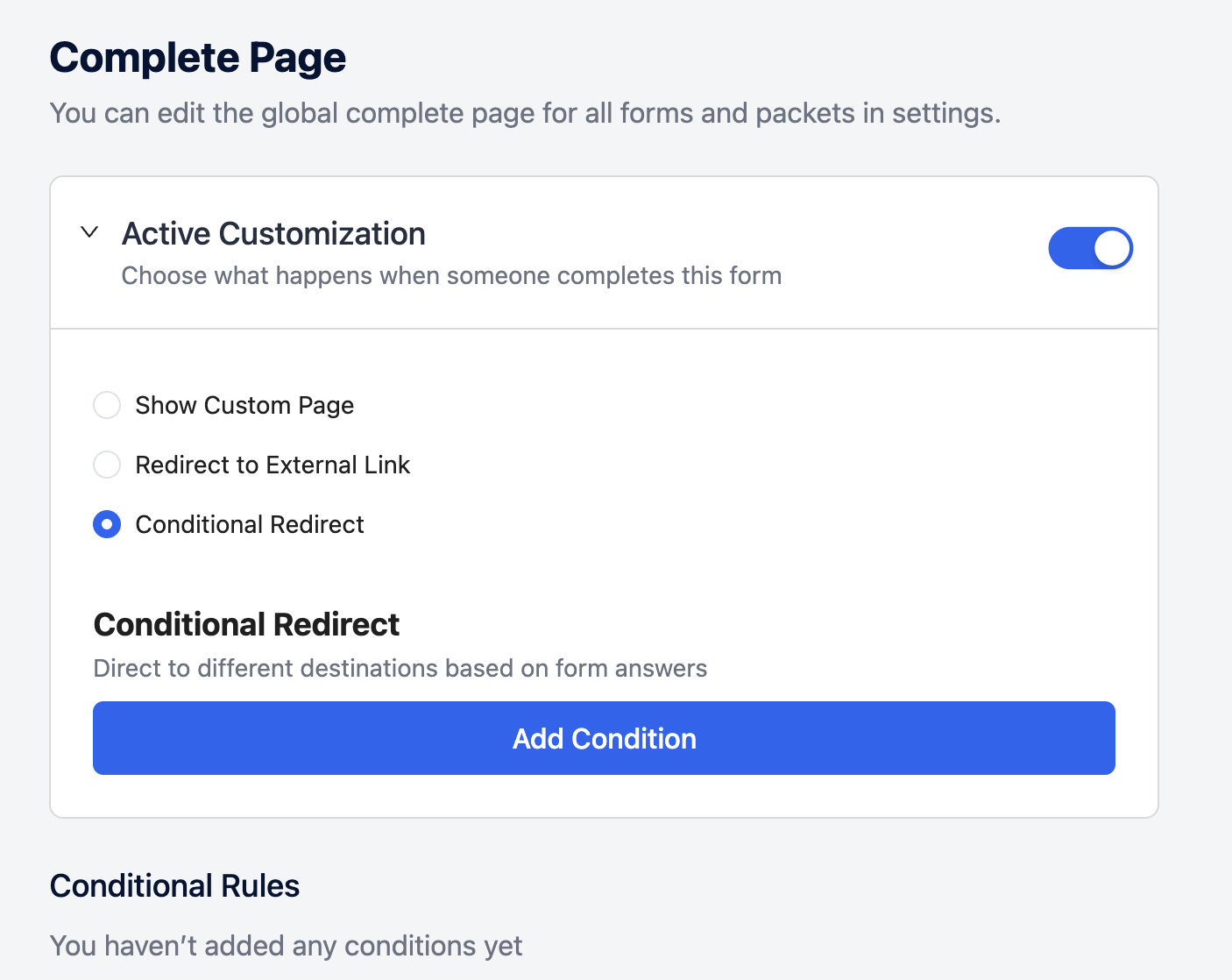
Step 3: Add a New Condition
-
Click the Add Condition button.
In the condition setup, specify the following:
- Question: Choose a question from your form.
- Logic: Select a logical operator (e.g., equals, contains, greater than).
- Answer: Input the answer or value that triggers the condition.
For example:
- If the question is "How would you rate your overall experience with our practice today?", set the logic to "equals" and the answer to "Excellent."

Step 4: Assign an Ending Page
- Once the condition is set, select the page or URL you want to display if the condition is met.
-
You can create custom pages by clicking the Create New Page option.
Customize the page content using Zentake’s editor.
- Include text, links, or instructions tailored to the user.
-
- Set Default Response "If no conditions match, use as fallback"

Step 5: Add Additional Conditions (Optional)
Repeat Steps 3 and 4 for any additional conditions. For example:
- If the user answers "No" to the insurance question, direct them to a page with information about self-payment options.
Step 6: Test Your Form
- Use the Preview button in the Form Builder to test your conditional logic.
- Answer the questions to trigger different "Complete Pages."
- Verify that the correct page displays based on the input.