Elation: sync pharmacy
This guide walks you through connecting a Zentake field to Elation’s Pharmacy field. Once mapped, patients will be able to search and select from Elation’s pharmacy database during form completion.
Overview
To map a pharmacy field to Elation, you must:
- Create a Text question in your Zentake form.
- Map that question to Elation’s Pharmacy field
- Save and publish the form
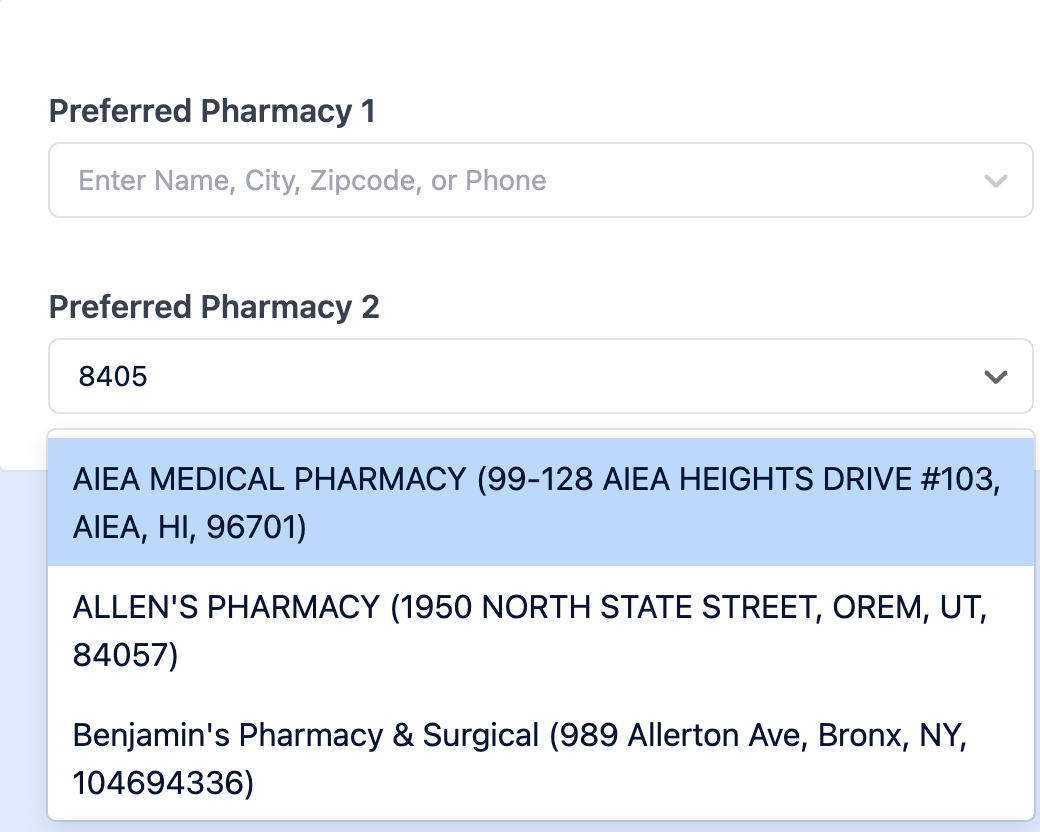
After mapping, the field will automatically display a searchable list of pharmacies for the patient to choose from.
Step 1: Add a Text Question to Your Form
- Open the form you want to connect to Elation.
- Click Add Question.
-
Select Text as the question type.
Label the question clearly, for example:
- Preferred Pharmacy
- Select Your Pharmacy
- Save the question.
⚠️ Important:
The pharmacy field must be a Text question type. Other question types (dropdowns, multiple choice, etc.) will not work for Elation pharmacy mapping.
Step 2: Map the Question to Elation’s Pharmacy Field
- Locate the text question you just created.
- From the Elation field dropdown, select Pharmacy.
- Save the mapping.
Once mapped, Zentake knows this field should pull from Elation’s pharmacy database.
Step 3: Publish and Test
- Save the Form
- Click Preview to test the Form.
- Navigate to the pharmacy question.
-
Begin typing a pharmacy name.
You should now see a searchable list of pharmacies populated from Elation that the patient can select from.