
Create multi-language forms and documents
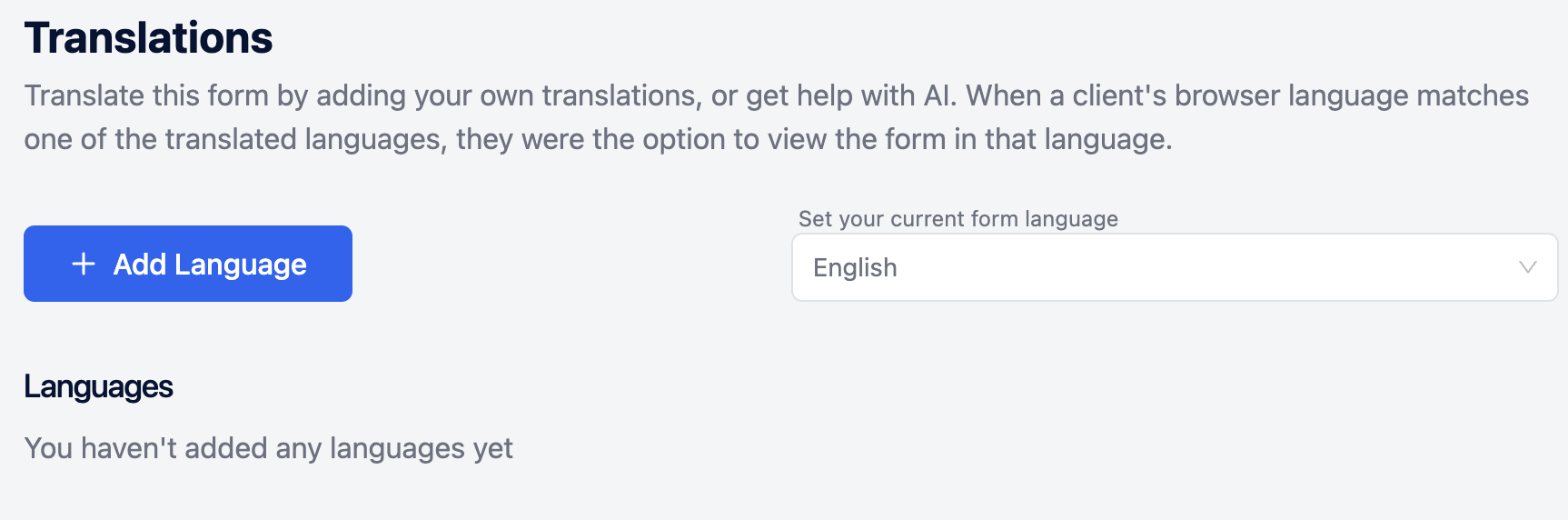
Save time and streamline patient intake by offering your forms in multiple language options without duplicating forms for other languages You'll have the option to write your own translations or have AI translate your form for you. The form will be translated if the respondent's browser language matches one of the translations you've added.
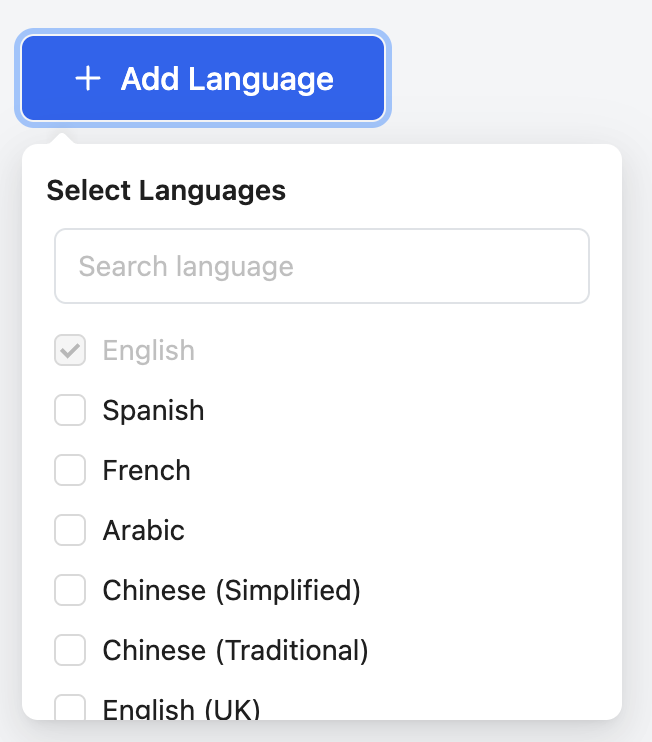
You can create multi-language forms with the following languages:
- English
- Spanish
- French
- Arabic
- Chinese (Simplified)
- Chinese (Traditional)
- English (UK)
- Portuguese (Portugal)
- Portuguese (Brazil)
- German (Germany)
- Italian (Italy)
- Dutch (Netherlands)
- Polish (Poland)
- Swedish (Sweden)
- Greek (Greece)
- Romanian (Romania)
- Turkish (Turkey)
- Ukrainian (Ukraine)
To create multi-language forms, you’ll need a Pro Plan
We recommend finalizing the text in your form before adding any translations.
Add multiple languages to your form
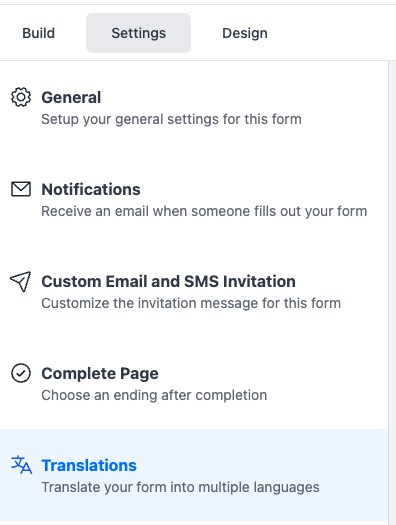
1. Open your form and click Settings>Translations icon.
2. Click + Add languages.
3. Select the languages you'd like to add to your form.
- Next, you'll see the status Translation needed for the language you selected.
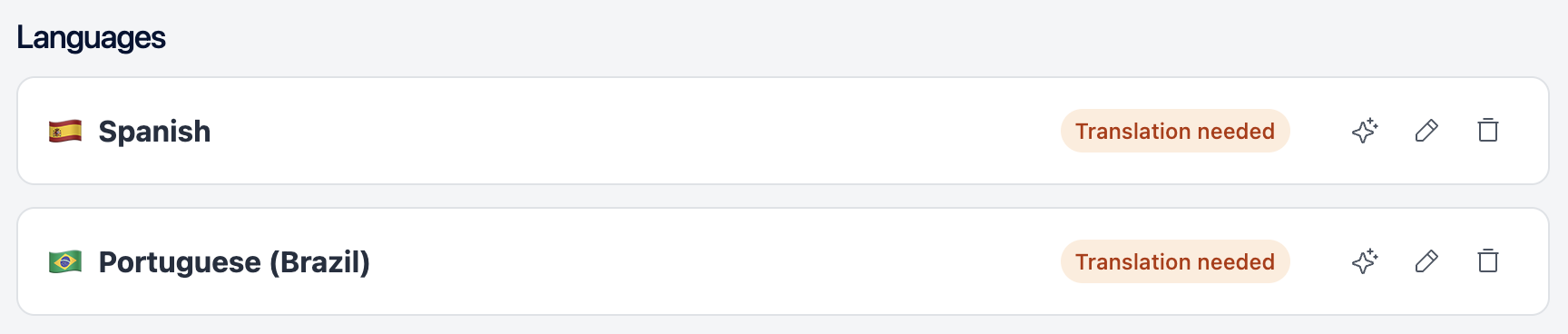
- Choose how you'd like to translate your form:
You can Translate with AI. (we suggest you review any AI translations)
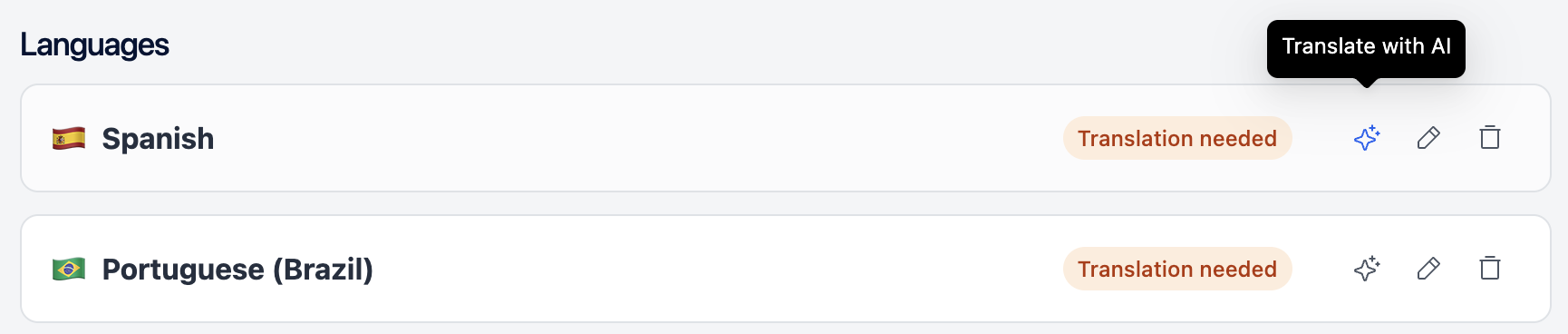
Or Translate each question manually.
- After clicking Translate with AI or translating each question manually you'll see the status has changed to Translated. and your form is ready to go.
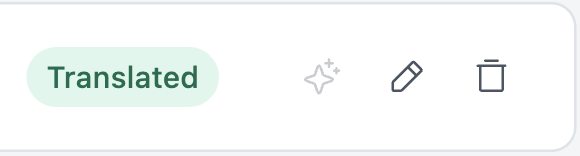
If you edit the original (base) form later, any existing translations will require updates before they can be used again.
How Multi-Language Packets Work
Packets can only be translated in a language if every form inside the packet is translated in that same language.
That means:
- You enable translations on each form
- A packet language becomes available only when all included forms are fully translated for that language
- If even one form is missing translation for a language, the packet will not be able to display in that language