
Automatically Tag Patients in Elation Based on Form Responses
Overview
With Zentake’s Elation integration, you can automatically apply patient tags in Elation based on how patients answer your forms.
Use patient tags to identify specific conditions, flag responses that need follow-up, and help your team organize patient records without manually tagging each patient.
How It Works
In the Zentake Form Builder, you can map question answers to patient tags in Elation. When a patient completes the form, Zentake uses your configured mappings to determine which tags to apply.
You can configure what tag is added using a Choice question, such as a dropdown or radio button, or use a Calculation question for more advanced rules.
How to Set Up Patient Tagging
- Open your form in the Zentake Form Builder.
- Select the question you want to use for patient tagging.
- Configure the patient tag mapping to associate the appropriate answer or calculated result with an Elation tag.
- Save your form.
When the patient completes the form, Zentake applies the mapped tag based on their response and your configured rules.
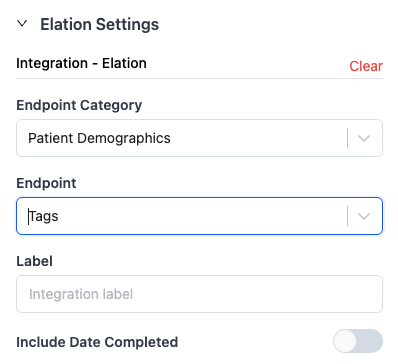
Option 1: Use a Choice Question
For straightforward tagging, use a Choice question with dropdown or radio button options.
For example, you could ask, “Do you currently smoke?”
- Yes: Apply the “Current Smoker” tag.
- No: Apply the “Non-Smoker” tag.
Map each answer to the appropriate Elation tag in the Form Builder.
Customize the Integration Value
For Choice questions, you can use the Integration Value field to send a different value to Elation than the text displayed to the patient.
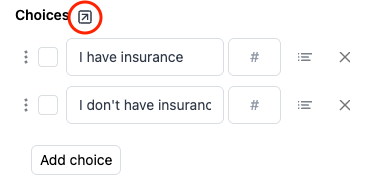
- Choices: The answer options the patient sees on the form.
- Integration Value: The value Zentake sends to Elation for integration purposes.
For example, you might ask patients about their insurance coverage while sending a standardized value to Elation.
| Choice (Patient Sees) | Integration Value (Sent to Elation) |
|---|---|
| I have insurance | Insured |
| I don't have insurance | Self-Pay |
This allows you to display clear, patient-friendly answer choices while sending the corresponding integration values to Elation.
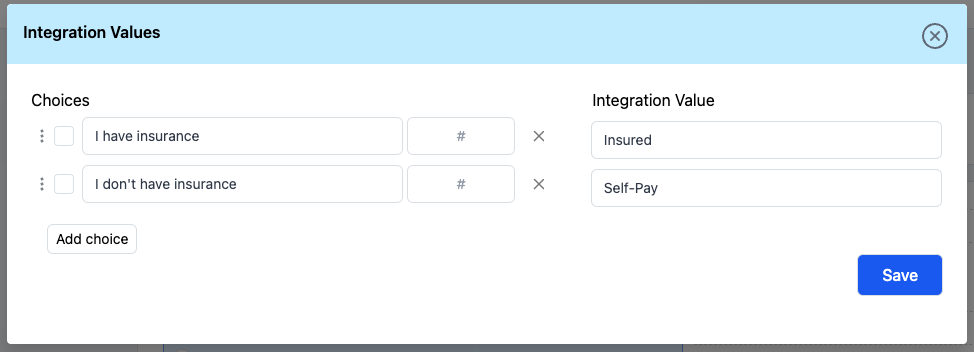
This lets you keep your answer choices clear and easy for patients to understand while ensuring the corresponding values sent to Elation match the tags your practice uses.
Option 2: Use a Calculation Question
For more advanced tagging, use a Calculation question with functions to evaluate one or more responses.
For example, you could calculate a screening score or evaluate multiple answers to determine whether a patient meets specific criteria. The resulting value can then be used to map the appropriate patient tag.
This approach is useful when tagging depends on multiple answers rather than a single choice.
Tips for Success
- Use Choice questions for simple, answer-based tagging.
- Use Calculation questions w/ functions when tagging depends on multiple answers or more complex conditions.
- Use clear, consistent tag names so your team understands what each tag represents.
Need help? Contact Zentake Support for assistance setting up patient tag mappings.