
How to Integrate Insurance Questions with Elation
Zentake’s Elation integration lets you collect insurance information through your forms and map it to the corresponding fields in Elation.
Open an existing form or create a new one in the Zentake Form Builder. Add the questions needed to collect insurance information.
The following two fields must be mapped and required for the insurance integration to work:
- Carrier Name
- Member ID
Mapping Questions to Elation
-
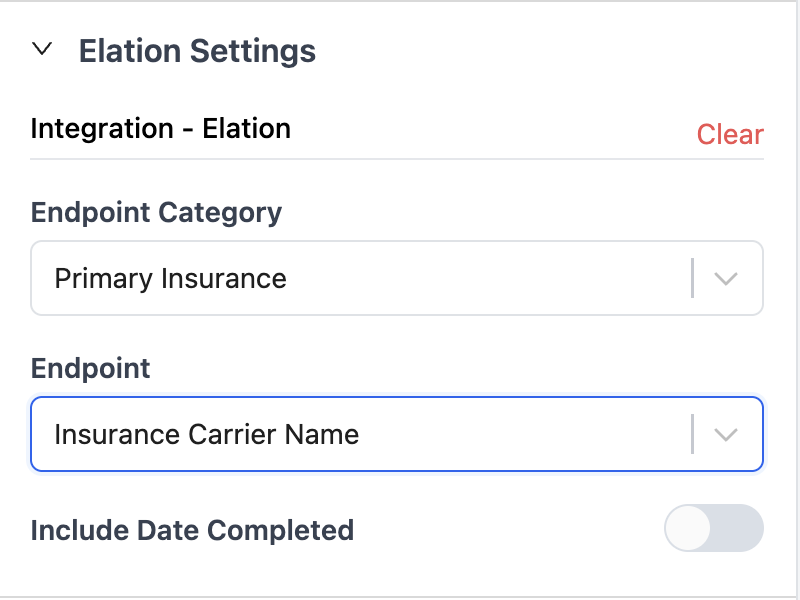
Map the Carrier Name Question
The Carrier Name mapping is unique because it automatically converts a text question into a dropdown populated with the insurance selections available in your Elation account.
- Add a Short Text question to your form.
- Open the question's Integration settings and map it to the Elation Carrier Name endpoint.
- Preview your form to verify that the question now appears as a dropdown populated with your Elation insurance selections.
Patients can select their insurance carrier from the available options.
-
Map Additional Insurance Fields
Add any other insurance or insured person questions you want to integrate with Elation.
For each question:
- Add the appropriate question to your form.
- Open its Integration settings.
- Select the corresponding Elation field.
Repeat for each additional field you want to integrate. Once your mappings are configured, you're ready to go!
Insurance card uploads
To collect copies of insurance cards, add two File Upload questions to your form:
- Front of Insurance Card — allows patients to upload the front of their insurance card.
- Back of Insurance Card — allows patients to upload the back of their insurance card.
You can configure these questions as required or optional based on your practice's workflow.