
How to Use Multiple Accounts
What is an Account?
Accounts are separate, isolated workspaces inside your Zentake organization.
- Each account has its own users, forms, and settings.
- Nothing is shared between accounts.
- Users only have access to the accounts they are invited to.
This article explains what accounts are and how to manage them.
How to access Accounts Admin
1. Click your profile avatar in the top-right corner of Zentake.
2. In the dropdown menu that appears, scroll to the bottom and click Organization Admin.
3. You'll see a list of all accounts in your organization. Click into any account to open it, or from here you can create new accounts, check member counts, and delete accounts you no longer need.
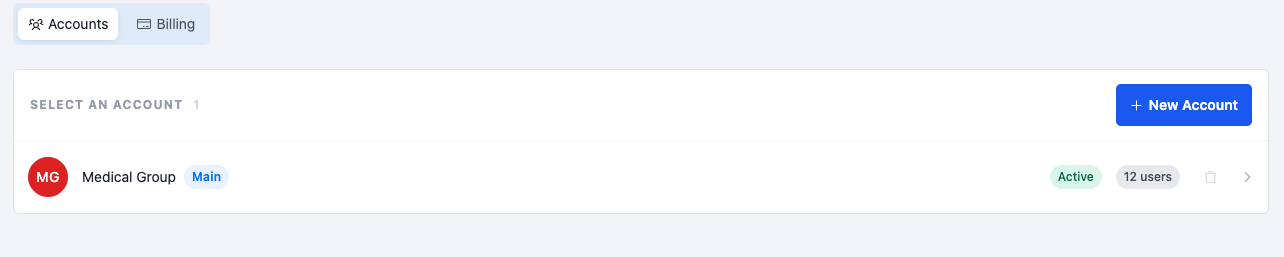
How to create a new account
1. From the Accounts Admin page, click + New Account in the top-right corner.
2. Enter an account name and click Create.
The new account will appear in your list immediately with 1 member — the organization owner.
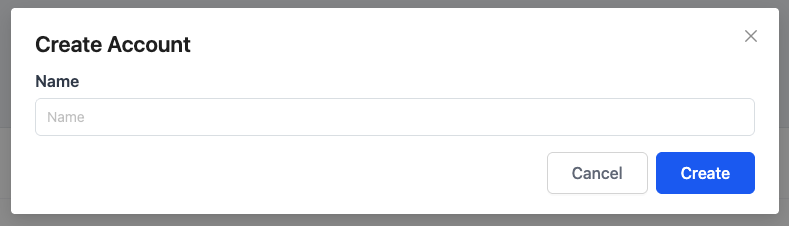
How to add a member to an account
To invite a new user to the account, click your profile avatar in the top-right corner.
- Click Account
- Click on users tab
- Click + Add member in the top-right of the users section.
- In the panel that opens, you have two options:
- Add existing member — Search by name or email and click the person's row to add them instantly.
- Invite by email — Enter an email address and click Invite & Add. They'll receive an invite email to create a password before accessing the account.
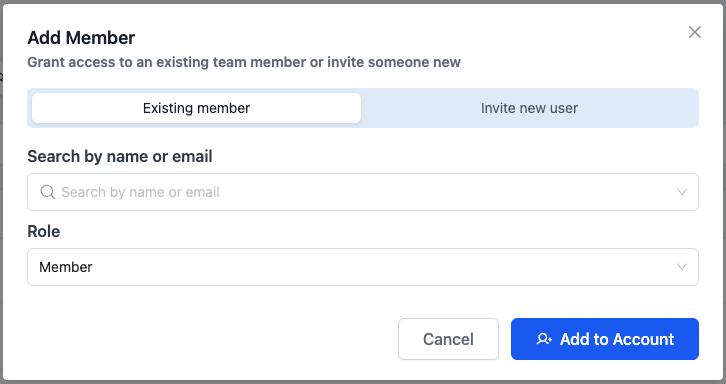
How to remove a member from an account
To remove a user from the account, click your profile avatar in the top-right corner.
- Click Account
- Click on users tab
- Find the user in the users tab.
- Click the trash can to remove on the right side of their row.
Removing a member from an account does not delete their Zentake login. They will remain in your organization until their user is removed from all accounts.
How to delete an account
- Click the trash icon that appears on the right side of the row.
- Confirm deletion in the dialog that appears.
- You cannot delete your Main Account
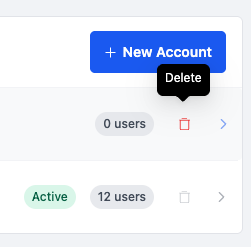
Important: Deleting an account is permanent and cannot be undone. This action is irreversible. The following data will be immediately and permanently removed from Zentake:
- All forms will be permanently deleted
- All patient records will be permanently deleted
- All form submissions will be permanently deleted
Members themselves are not deleted — they remain in your organization and any other accounts they belong to.
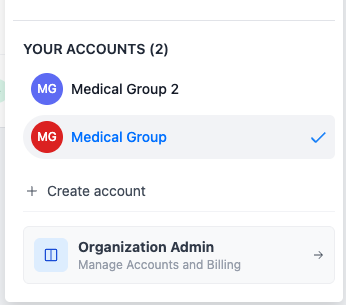
How to switch between accounts
1. Click your profile avatar in the top-right corner of Zentake.
2. Your organizations are listed under Your Organizations. A ✓ checkmark indicates your currently active account.
3. Click any organization name to switch to it.
Who can manage accounts?
Only organization Owner can create, edit, and delete accounts.
Can a member belong to more than one account?
Yes. A single user can be added to as many accounts as needed. Their access in each account is completely independent.
What's the difference between an organization and an account?
Your organization is the top-level entity — your company or group. Accounts live inside the organization and represent individual, isolated workspaces such as separate clinic locations or care teams.
Is data shared between accounts?
No. Each account is fully isolated. Forms, settings, and data do not cross account boundaries.
Related articles
Have more questions? Submit a request