
Turn off (Auto Integrate) Upon Submission
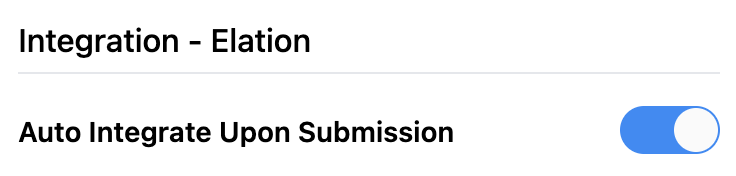
Auto Integrate Upon Submission determines when completed forms are sent to Elation.
When enabled, submissions are automatically sent to Elation as soon as a patient completes a form. When disabled, submissions remain in Zentake until a staff member reviews and manually sends them.
This setting applies only to the Elation integration and is enabled by default.
|
|
On (Default) | Off |
|---|---|---|
| Best for | Practices that want submissions added to Elation immediately | Practices that want to review or make corrections before sending data to Elation |
How to turn Auto Integrate on or off
The setting is configured individually for each form, packet, or document. This allows you to choose which submissions should integrate automatically and which should require manual review.
- Open the form, packet, or document you want to update.
- Navigate to Build. (click the title)
- Locate Auto Integrate Upon Submission.
- Toggle the setting on or off.
- Save your changes.
How to manually send a submission to Elation
If Auto Integrate is turned off, staff can send submissions to Elation whenever they're ready.
- Open the patient's record in Zentake.
- Navigate to the patient's Timeline.
- Locate the submission you want to send.
- Open the submission's dropdown menu.
- Select Trigger Integration.

Important things to know
- Turning Auto Integrate back on won't send previously held submissions. Any submissions received while the setting was off must still be sent manually using Trigger Integration. Only new submissions will integrate automatically.
- Check integration status in the Timeline. Each integration event displays either Success or Failed, so you can confirm whether the submission was sent successfully.
- If an integration fails: See our troubleshooting guide: My forms are not integrating into Elation... What to do?.
If you have questions or need help, contact us at support@zentake.com. We're happy to help!